

1. Replace ic_launcher.png icon with your own.
You can find it in folder app > res > mipmap.
2. Choose a color you want to use in your app.
Open colors.xml in folder app > res > values.
There are 10 color schemes included, blue is the default one.
If you want to use blue color, don’t change anything and skip to next step.
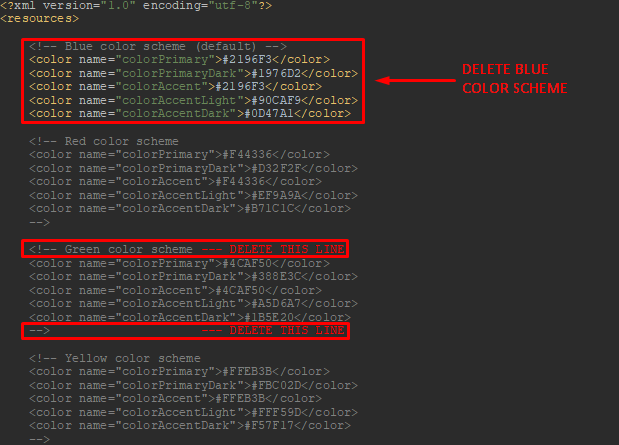
If you want to use any other color scheme that is included,
delete (or comment) blue color scheme and uncomment
the color scheme you want to use.
For example, if you want to use green color scheme, do it this way:
3. Choose a font you want to use in your app.
Default font is Roboto, if you don’t want to change it skip this article.
a) If you want to use local (offline) font, put it in folder app > res > font.
b) If you want to use web (online) font, open webfont.xml in folder
app > res > font and change the following line to your liking.
In the given example, we are using web font Ubuntu with weight 500.

Once you are done, open styles.xml and styles.xml (v21) in folder
app > res > values > styles and link your font to these two lines below :

If you are using local (offline font), connect it same way:
