<?xml version="1.0" encoding="UTF-8"?>
<feed xmlns="http://www.w3.org/2005/Atom" xml:lang="">
                        <id>https://swapp.support-hub.io/feed/354</id>
                                <link href="https://swapp.support-hub.io/feed/354" rel="self"></link>
                                <title><![CDATA[Swapp – Web To App | Multi-Purpose Android WebView App Article Feed]]></title>
                    
                                <subtitle></subtitle>
                                                    <updated>2019-07-20T17:37:10+00:00</updated>
                        <entry>
            <title><![CDATA[Disabling all menus]]></title>
            <link rel="alternate" href="https://swapp.support-hub.io/articles/disabling-all-menus" />
            <id>https://swapp.support-hub.io/145</id>
            <author>
                <name><![CDATA[Swapp Support]]></name>
            </author>
            <summary type="html">
                <![CDATA[<p>If you have a single page and you don't need a menu, follow these steps:</p><p><br /></p><p><b>1.</b> Open <b>MainActivity.java</b></p><p><b><br /></b></p><p><b>2. </b>Delete lines from the screenshot below:</p><p><img src="https://support-hub--assets.s3.eu-west-2.amazonaws.com/assets/152/images/ziGdR0ePsUdFRhqjGnu4uyonQlUUGk80BdBxUkEr.png" alt="ziGdR0ePsUdFRhqjGnu4uyonQlUUGk80BdBxUkEr.png" /><br /></p><p><b><br /></b></p><p><b>3. </b>Add this line <b>drawer.setDrawerLockMode(DrawerLayout.LOCK_MODE_LOCKED_CLOSED);</b></p><p>
</p><p><a target="_blank" rel="noreferrer noopener">Your code should now look like this</a></p><p><img src="https://support-hub--assets.s3.eu-west-2.amazonaws.com/assets/152/images/oeBmhTcr9aKCOe1JPfx04GfVi3GUKpSgBXophdjf.png" style="width:100%;" alt="oeBmhTcr9aKCOe1JPfx04GfVi3GUKpSgBXophdjf.png" /><br /></p>]]>
            </summary>
                                    <updated>2019-04-10T22:26:22+00:00</updated>
        </entry>
            <entry>
            <title><![CDATA[Setting up Android Studio and Swapp]]></title>
            <link rel="alternate" href="https://swapp.support-hub.io/articles/setting-up-android-studio-amp-swapp" />
            <id>https://swapp.support-hub.io/147</id>
            <author>
                <name><![CDATA[Swapp Support]]></name>
            </author>
            <summary type="html">
                <![CDATA[<p><b><br /></b></p><p><b>1.</b>	Download and install Android Studio.<br /></p><p><a href="https://developer.android.com/studio/">https://developer.android.com/studio/</a></p><p><br /></p><p><b>2.</b>	Export the project from zip, then import it into Android Studio.
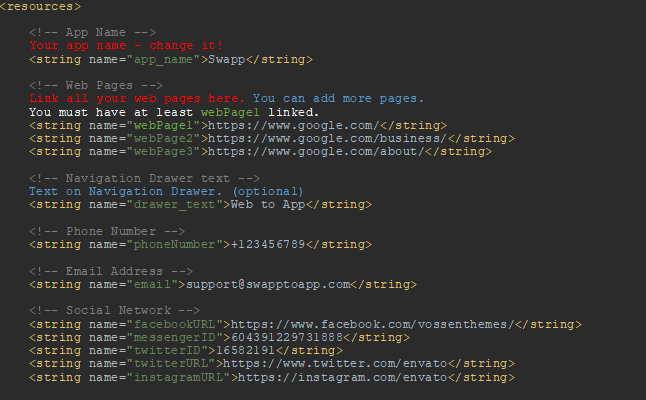
</p><p><br /></p><p><b>3.	</b>Open <b>strings.xml</b> in folder <b>app &gt; res &gt; values</b>. Change the following:
</p><p><img src="https://support-hub--assets.s3.eu-west-2.amazonaws.com/assets/152/images/16GJqNRAbhcB948WTd4uMIIbEHEgVY4aoRIarnRL.png" alt="16GJqNRAbhcB948WTd4uMIIbEHEgVY4aoRIarnRL.png" style="width:100%;" /></p><p><br /></p><p>If you want to use offline pages, open <b>offlinePage</b> folder in <b>app &gt; assets</b>.
</p><p>Put your offline website in that folder, then link it like this (inside previously mentioned <b>strings.xml</b>):</p><p><img src="https://support-hub--assets.s3.eu-west-2.amazonaws.com/assets/152/images/YZKQDVBAg1Hv6Hn8qUHrtruVjVs6BhN8wTOqUuO5.png" alt="YZKQDVBAg1Hv6Hn8qUHrtruVjVs6BhN8wTOqUuO5.png" /></p>]]>
            </summary>
                                    <updated>2019-07-20T17:37:10+00:00</updated>
        </entry>
            <entry>
            <title><![CDATA[Customizing and Rebranding your App]]></title>
            <link rel="alternate" href="https://swapp.support-hub.io/articles/customizing-and-rebranding-your-app" />
            <id>https://swapp.support-hub.io/148</id>
            <author>
                <name><![CDATA[Swapp Support]]></name>
            </author>
            <summary type="html">
                <![CDATA[<p><br /></p><p><b>1.	</b>Replace <b>ic_launcher.png</b> icon with your own.
</p><p>You can find it in folder <b>app &gt; res &gt; mipmap</b>.</p><p><br /></p><p>
</p><p>
</p><p><b>2.</b>	Choose a color you want to use in your app.
</p><p>Open <b>colors.xml</b> in folder <b>app &gt; res &gt; values</b>.
</p><p>There are 10 color schemes included, blue is the default one.
</p><p>If you want to use blue color, don’t change anything and <b>skip to next step</b>.</p><p><br /></p><p>
</p><p>
</p><p>If you want to use any other color scheme that is included,
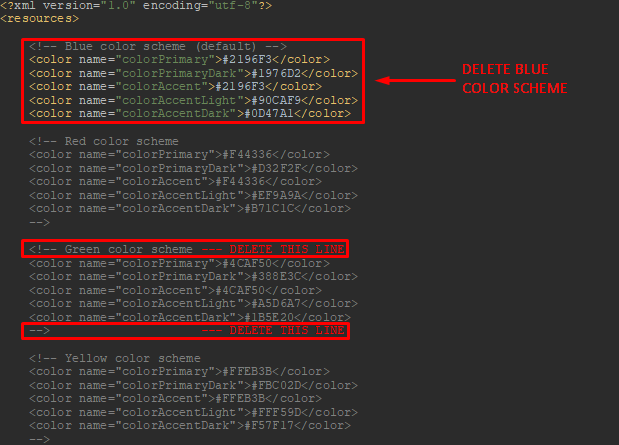
</p><p>delete (or comment) blue color scheme and uncomment
</p><p>the color scheme you want to use.</p><p><br /></p><p>
</p><p>
</p><p>For example, if you want to use green color scheme, do it this way:
</p><p><img src="https://support-hub--assets.s3.eu-west-2.amazonaws.com/assets/152/images/JAkijqDbLC5YlkUL6ra46ZIHZpYcCzIghV9GTx11.png" alt="JAkijqDbLC5YlkUL6ra46ZIHZpYcCzIghV9GTx11.png" /></p><p><br /></p><p><b>3.</b>	Choose a font you want to use in your app.
</p><p>Default font is Roboto, if you don’t want to change it <b>skip this article</b>.
</p><p>
</p><p>a)	If you want to use local (offline) font, put it in folder <b>app &gt; res &gt; font</b>.
</p><p>
</p><p>b)	If you want to use web (online) font, open <b>webfont.xml</b> in folder 
</p><p><b>app &gt; res &gt; font</b> and change the following line to your liking.
</p><p>In the given example, we are using web font <b>Ubuntu </b>with <b>weight 500</b>.</p><p><img src="https://support-hub--assets.s3.eu-west-2.amazonaws.com/assets/152/images/mXLfj4FUxqfoJ9nYIfGKG95g2iezY5YMcSkYFxzb.png" alt="mXLfj4FUxqfoJ9nYIfGKG95g2iezY5YMcSkYFxzb.png" /></p><p><br /></p><p>Once you are done, open <b>styles.xml</b> and <b>styles.xml (v21)</b> in folder 
</p><p><b>app &gt; res &gt; values &gt; styles</b> and link your font to these two lines below :

</p><p><img src="https://support-hub--assets.s3.eu-west-2.amazonaws.com/assets/152/images/Sk62YJwUuu5tIALipE79slmKIa1DOwkMTD2ryroC.png" alt="Sk62YJwUuu5tIALipE79slmKIa1DOwkMTD2ryroC.png" /></p><p><br /></p><p>If you are using local (offline font), connect it same way:</p><p><img src="https://support-hub--assets.s3.eu-west-2.amazonaws.com/assets/152/images/wSeMiRhxBeiDu5pjAktzeWQaTUzzchZwkwakkttL.png" alt="wSeMiRhxBeiDu5pjAktzeWQaTUzzchZwkwakkttL.png" /><br /></p><p><br /></p>]]>
            </summary>
                                    <updated>2018-12-10T23:05:09+00:00</updated>
        </entry>
            <entry>
            <title><![CDATA[Choosing Home Navigation style]]></title>
            <link rel="alternate" href="https://swapp.support-hub.io/articles/choosing-home-navigation-style" />
            <id>https://swapp.support-hub.io/149</id>
            <author>
                <name><![CDATA[Swapp Support]]></name>
            </author>
            <summary type="html">
                <![CDATA[<p>
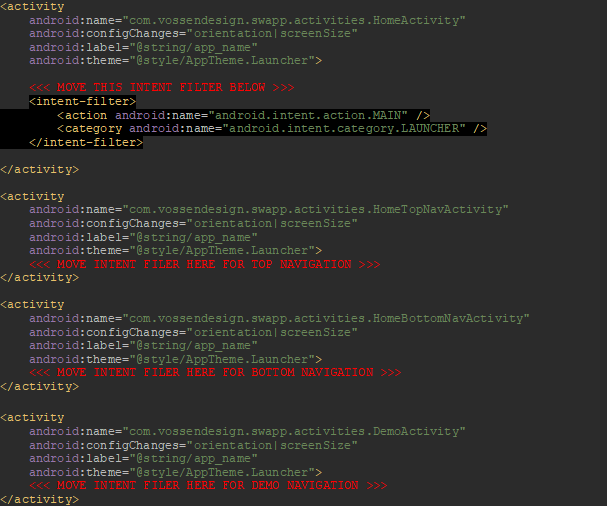
</p><p><b>1.</b>	There are 3 home navigation styles included:
</p><p><b>a)	<i>Home with Navigation Drawer</i></b> (default)
</p><p><b>b)	<i>Home with Top Tabs
</i></b></p><p><b>c)	<i>Home with Bottom Tabs</i></b></p><p>and <i><b>Demo Home version</b></i></p><p><b><i>
</i></b></p><p>If you want to use <b><i>Home with Navigation Drawer</i></b>, don’t change anything and <b>skip to next step</b>.</p><p>If you want to use <b>Home with Top Tabs</b>, <b>Bottom Tabs </b>or<b> Demo Home</b>, open <b>manifest.xml</b> in folder <b>app &gt; manifests</b> and move intent filter to your home activity:</p><p></p><p><img src="https://support-hub--assets.s3.eu-west-2.amazonaws.com/assets/152/images/7kUHRPWDAW9DrqaK2Kz4PqpkyicUp3z8kMTuNI9B.png" alt="7kUHRPWDAW9DrqaK2Kz4PqpkyicUp3z8kMTuNI9B.png" /><br /></p><p><b>2.</b>	If you are using <b><i>Home with Navigation Drawer</i></b>, open
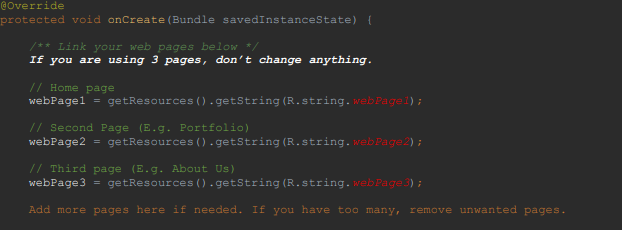
</p><p><b>HomeActivity.java</b> in folder 
<b>app &gt; java &gt; com.vossenthemes.swapp &gt; activities </b></p><p>and connect your web pages you have linked in your <b><a href="https://swapp.support-hub.io/articles/setting-up-android-studio-amp-swapp" target="_blank" rel="noreferrer noopener">strings.xml.</a></b></p><p><img src="https://support-hub--assets.s3.eu-west-2.amazonaws.com/assets/152/images/u3lsFnBC24ZXmg6nKXTeekRE781a5BC7g1gi1ZAn.png" alt="u3lsFnBC24ZXmg6nKXTeekRE781a5BC7g1gi1ZAn.png" /><b><br /></b></p><p><b><br /></b></p><p>If you are using<b> <i>Home with Top Tabs</i></b><i> </i>or <b><i>Bottom Tabs</i></b> instead, open folder
</p><p><b>app &gt; java &gt; com.vossenthemes.swapp &gt; activities &gt; fragments</b>.</p><p><br /></p><p>
</p><p>
</p><p>There are <b>HomeFragment1</b>,<b> HomeFragment2 </b>and <b>HomeFragment3</b>.
</p><p>One HomeFragment is one webpage tab in<b> Top Tab</b> or <b>Bottom Tab</b>.
</p><p><b>If you are using exacly 3 pages, skip this step.</b></p><p><b><br /></b></p><p><b>
</b></p><p>
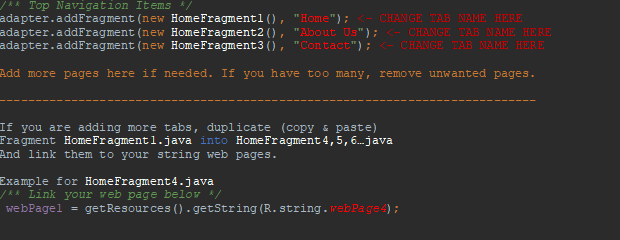
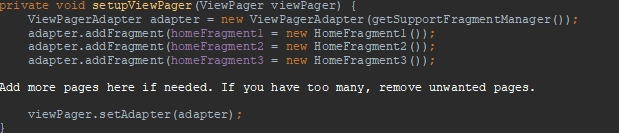
</p><p>If you want more or less than 3 pages, open and change:</p><p><br /></p><p>
</p><p>
</p><p>For<i> </i><b><i>Top Tabs</i>:</b> <b>HomeTopNavActivity.java</b> (folder<b> java &gt; activities</b>)
</p><p><img src="https://support-hub--assets.s3.eu-west-2.amazonaws.com/assets/152/images/CraiDxGoXkqFBvRf4GuQUU6tVwFQygMMEFfanekK.png" alt="CraiDxGoXkqFBvRf4GuQUU6tVwFQygMMEFfanekK.png" /></p><p><br /></p><p>For <b><i>Bottom Tabs:</i> HomeBotNavActivity.java </b>(folder <b>java &gt; activities</b>)</p><p><img src="https://support-hub--assets.s3.eu-west-2.amazonaws.com/assets/152/images/bmF8XeLwpZwJn1S5RRvQ18CGjfHCl42tZ04LqIYp.png" alt="bmF8XeLwpZwJn1S5RRvQ18CGjfHCl42tZ04LqIYp.png" /></p><p><img src="https://support-hub--assets.s3.eu-west-2.amazonaws.com/assets/152/images/pS6dZlmhgQmc1PuHFskYtThvYqy7cWi96NNnlecs.png" alt="pS6dZlmhgQmc1PuHFskYtThvYqy7cWi96NNnlecs.png" /></p><p><br /></p><p>For <b><i>Demo Home version: </i> DemoActivity.java</b> (folder <b>java &gt; activities</b>)</p>]]>
            </summary>
                                    <updated>2018-12-14T03:16:32+00:00</updated>
        </entry>
            <entry>
            <title><![CDATA[Customizing Menus]]></title>
            <link rel="alternate" href="https://swapp.support-hub.io/articles/customizing-menus" />
            <id>https://swapp.support-hub.io/150</id>
            <author>
                <name><![CDATA[Swapp Support]]></name>
            </author>
            <summary type="html">
                <![CDATA[<p>
</p><p><b>1.	Changing Actionbar (Toolbar) menu
</b></p><p>Open <b>main.xml</b> in folder <b>app &gt; res &gt; menu</b>.
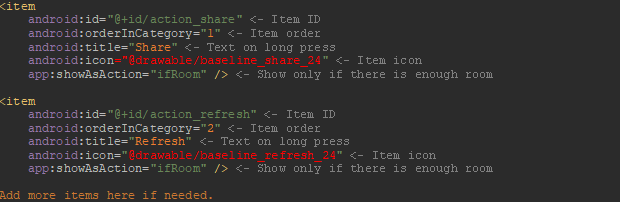
</p><p>Currently there are 2 items: <i>share </i>and <i>refresh</i>.
</p><p>You can change them and add more items as well.
</p><p><img src="https://support-hub--assets.s3.eu-west-2.amazonaws.com/assets/152/images/5DCwKTFmclf16r34be7PDpeKWyp0Y9aPrWyc8Dnn.png" alt="5DCwKTFmclf16r34be7PDpeKWyp0Y9aPrWyc8Dnn.png" /></p><p>Once you have items to your liking, open your homepage file
(<b>HomeActivity</b>, or <b> HomeFragment1,2,3</b> for <b>Home with Top Tabs </b>/<b> Home with Bottom Tabs</b>) and find <b><i>onOptionsItemSelected</i></b>.</p><p>Here you can change your item funcions. Just make sure that <b>main.xml</b> and <b><i>onOptionsItemSelected </i></b>have the same number of items and same <b>ID</b>s.</p><p><br /></p><p>
</p><p>If you want to add some different functions, go to <b>HomeActivity </b>and find <b><i>onNavigationItemSelected</i></b>. Select the action you want and copy&amp;paste it into <b><i>onOptionsItemSelected </i></b>in your home activity.</p><p><br /></p><p><br /></p><p> 
</p><p>
</p><p><b>2.	Changing</b> <b><i>Home with Drawer</i></b> <b>or<i> Home with Bottom Tabs</i> menus</b></p><p><b><br /></b></p><p><b>
</b></p><p>For <b><i>Home with Navigation Drawer</i></b> (drawer menu) and <b><i>Home with Bottom Tabs</i></b> (bottom menu), we use the same method as in <b>step 1</b>.</p><p><br /></p><p>
</p><p>
</p><p><b><i>Home with Navigation Drawer: 
</i></b></p><p>Open <b>activity_home_drawer.xml</b> in folder<b> app &gt; res &gt; menu</b>.
</p><p>Change it to your liking, then open <b>HomeActivity.java</b> and change <b><i>onNavigationItemSelected </i></b>to match your item actions.
</p><p><br /></p><p><b><i>Home with Bottom Tabs: 
</i></b></p><p>Open <b>activity_homebottomdrawer.xml</b> in folder <b>app &gt; res &gt; menu</b>.
</p><p>Change it to your liking, then open <b>HomeBottomNavActivity.java</b> and change <b>bottomNavigationView.setOnNavigationItemSelectedListener </b>to match your item actions.
</p><p><br /></p>]]>
            </summary>
                                    <updated>2018-12-10T23:05:33+00:00</updated>
        </entry>
            <entry>
            <title><![CDATA[Setting up Interstitial and Banner Ads]]></title>
            <link rel="alternate" href="https://swapp.support-hub.io/articles/setting-up-interstitial-and-banner-ads" />
            <id>https://swapp.support-hub.io/151</id>
            <author>
                <name><![CDATA[Swapp Support]]></name>
            </author>
            <summary type="html">
                <![CDATA[<p>
</p><p><b>1.	</b>Create your AdMob account here:
</p><p><a href="https://www.google.com/admob/" target="_blank" rel="noreferrer noopener">https://www.google.com/admob/</a></p><p>Create new Interstitial and/or Banner Ads there.
</p><p>
</p><p>2.	Open <b>strings.xml</b> in folder <b>app &gt; res &gt; values</b>.
</p><p>Place your <b>App ID</b>, <b>Interstitial ID</b> and/or <b>Banner ID
 </b>in their corresponding places. </p><p><img src="https://support-hub--assets.s3.eu-west-2.amazonaws.com/assets/152/images/TQRyipZfy3haAcsHdbqYk4tnMHU35eGOsjHTP6Zf.png" alt="TQRyipZfy3haAcsHdbqYk4tnMHU35eGOsjHTP6Zf.png" /></p><p><b>-------------------------------------------------------------------------------------------------</b></p><p><b>WARNING: "You should always use test ads* when developing and testing your app--testing with live production ads is a violation of AdMob policy and could cause your account to be suspended"</b></p><p>*Current AdMob IDs inside project are for test ads.
 Use them to test ads before you change to live ad IDs. </p><p>-------------------------------------------------------------------------------------------------</p><p><br /></p><p><b>3.</b>	Open your home activity (<b>Home with Drawer</b>, <b>Top</b> or <b>Bottom</b> Tabs),
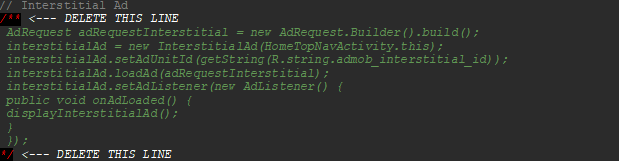
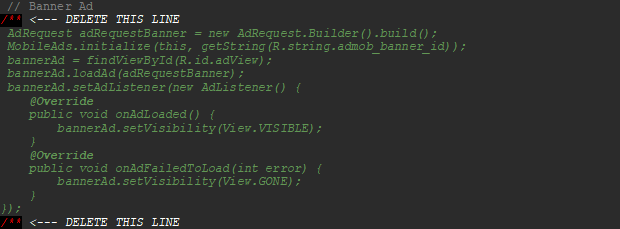
</p><p>and uncomment ad type you want to use:
</p><p>For <b>Interstitial Ad:
</b></p><p><img src="https://support-hub--assets.s3.eu-west-2.amazonaws.com/assets/152/images/mcWCS3mRNRNgo2sZONE7PX5g9LWKJ4yhJVBEk9bL.png" alt="mcWCS3mRNRNgo2sZONE7PX5g9LWKJ4yhJVBEk9bL.png" /></p><p><br /></p><p>For <b>Banner Ad:</b></p><p><img src="https://support-hub--assets.s3.eu-west-2.amazonaws.com/assets/152/images/dRtcANYkY1opOIdxYBzXs6d3DLAjGBriTZhBUeTO.png" alt="dRtcANYkY1opOIdxYBzXs6d3DLAjGBriTZhBUeTO.png" /><b><br /></b></p>]]>
            </summary>
                                    <updated>2018-12-10T23:09:04+00:00</updated>
        </entry>
            <entry>
            <title><![CDATA[Setting up OneSignal Notifications]]></title>
            <link rel="alternate" href="https://swapp.support-hub.io/articles/setting-up-onesignal-notifications" />
            <id>https://swapp.support-hub.io/152</id>
            <author>
                <name><![CDATA[Swapp Support]]></name>
            </author>
            <summary type="html">
                <![CDATA[<p>
</p><p><b>1.</b>	Go to Firebase and sign in with your Google account:
</p><p><a href="https://firebase.google.com/" target="_blank" rel="noreferrer noopener">https://firebase.google.com/</a></p><p><b>2.	</b>Click on <b>CREATE NEW PROJECT
</b></p><p>
</p><p><b>3.</b>	Enter your project name and click <b>CREATE PROJECT
</b></p><p>
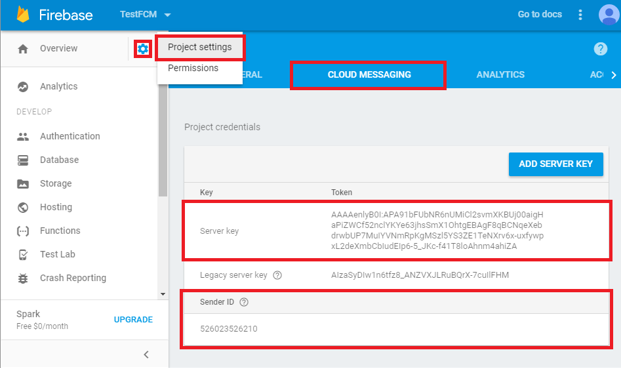
</p><p><b>4.	</b>Click the Gear icon on the top left and select <b>Project Settings</b>.
</p><p>
</p><p><b>5.</b>	Select the <b>CLOUD MESSAGING</b> tab.
</p><p>
</p><p><b>6.	</b>Here you can see your <b>Server Key</b> and <b>Sender ID</b>. Save them.
</p><p><img src="https://support-hub--assets.s3.eu-west-2.amazonaws.com/assets/152/images/PcphvTGDs6Za6Lt7zSyCz3qrogeWt4FCyvXe3IUW.png" alt="PcphvTGDs6Za6Lt7zSyCz3qrogeWt4FCyvXe3IUW.png" /></p><p><b>7.	</b>Create your OneSignal account here:
</p><p><b>https://www.onesignal.com/
</b></p><p>
</p><p><b>8.</b>	Click <b>ADD APP</b> button.
</p><p>
</p><p><b>9.	</b>After you have typed your app name, select <b>Google Android</b>.
</p><p>
</p><p><b>10.	</b> Paste Firebase <b>Server Key</b> and<b> Sender ID</b> from <b>step 6</b> to their corresponding places. Click<b> SAVE</b>.
</p><p>
</p><p><b>11.	</b> On the next step, select <b>Native Android</b> and click <b>NEXT</b>.
</p><p>
</p><p>12.	 You will be presented with your <b>App ID</b>. Save it. 
</p><p>
</p><p>13.	 Open Swapp in Android Studio, and go to file 
</p><p><b> build.gradle (Module: app) </b>in folder <b>Gradle Script</b>.
</p><p>
</p><p>14.	 Find <b>onesignal_app_id</b> and replace text 
</p><p><b>PUT YOUR ONESIGNAL APP ID HERE </b>to your <b>APP ID</b> from <b>step 12</b>.
</p><p><img src="https://support-hub--assets.s3.eu-west-2.amazonaws.com/assets/152/images/FN5yDymY2nd2sjny1s0uEfaKmsfWOj3iwliWo9NZ.png" alt="FN5yDymY2nd2sjny1s0uEfaKmsfWOj3iwliWo9NZ.png" /></p><p>15.	 Click <b>Sync Now</b> in the top right corner.
</p><p>
</p><p>16.	 Run your app on emulator or real device. Once the app is loaded, go back     to your OneSignal setup page and click <b>Check Subscribed Users</b>.
</p><p>If you see a green screen congratulating you, it means your setup is valid and you can continue. Click<b> DONE </b>to finish this setup.
</p><p>
</p><p>17.	 On the right side, you will see <b>SEND A PUSH MESSAGE</b>. Here you will customize and send your messages.
</p>]]>
            </summary>
                                    <updated>2018-12-10T23:09:56+00:00</updated>
        </entry>
            <entry>
            <title><![CDATA[Publishing your App]]></title>
            <link rel="alternate" href="https://swapp.support-hub.io/articles/publishing-your-app" />
            <id>https://swapp.support-hub.io/153</id>
            <author>
                <name><![CDATA[Swapp Support]]></name>
            </author>
            <summary type="html">
                <![CDATA[<p>
</p><p><b>1.	</b>First you need to rename packages.
</p><p>In your Project panel, click on the little gear icon.
</p><p><br /></p><p><b>2.	</b>Uncheck / De-select the Compact Empty Middle Packages option

</p><p><img src="https://support-hub--assets.s3.eu-west-2.amazonaws.com/assets/152/images/xqD4lV8lsniIovwofFxrXxgP7mrIigxVaHcWJkZL.png" alt="xqD4lV8lsniIovwofFxrXxgP7mrIigxVaHcWJkZL.png" style="width:100%;" /></p><p><br /></p><p><b>3.	</b>Your package directory will now be broken up in individual directories.
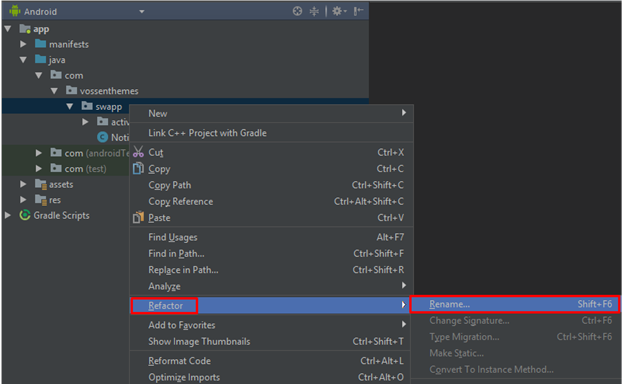
</p><p><br /></p><p><b>4.</b>	Individually select each directory you want to rename, and:
</p><p>•	Right-click it.
</p><p>•	Select <b>Refactor</b>.
</p><p>•	Click on <b>Rename</b>.
</p><p>•	In the pop-up dialog, click on <b>Rename Package</b>.
</p><p>•	Enter the new name and hit <b>Refactor</b>.
</p><p>•	Click <b>Do Refactor </b>in the bottom section.
</p><p>•	Allow a minute to let Android Studio update all changes.
</p><p><img src="https://support-hub--assets.s3.eu-west-2.amazonaws.com/assets/152/images/W8Jrp9XQX0G4X2OvlEeNCKwWybpKeccLcwqFDMbF.png" alt="W8Jrp9XQX0G4X2OvlEeNCKwWybpKeccLcwqFDMbF.png" /></p><p><br /></p><p><b>5.</b>	Go to file<b> build.gradle (Module: app)</b> in folder <b>Gradle Script</b>.
</p><p>Update the <b>applicationId </b>in the <b>defaultConfig </b>to your new Package name and click<b> Sync Now</b> in top right corner, if it hasn't already been updated automatically.

</p><p><img src="https://support-hub--assets.s3.eu-west-2.amazonaws.com/assets/152/images/FEGxqBK2mZbmHjH72NAuxGfEelSv1kgET0Zn4oOO.png" alt="FEGxqBK2mZbmHjH72NAuxGfEelSv1kgET0Zn4oOO.png" /></p><p><br /></p><p><b>6.	</b>Open <b>AndroidManifest.xml</b> in <b>app &gt; manifests</b> and change package= attribute if it hasn’t already been updated automatically.</p><p><img src="https://support-hub--assets.s3.eu-west-2.amazonaws.com/assets/152/images/lchtyryVEACncO692GsQPd8OlfeDr9lBNRoPk25I.png" alt="lchtyryVEACncO692GsQPd8OlfeDr9lBNRoPk25I.png" /></p><p><br /></p><p><b>7.</b>	Go to <b>Build &gt;  Clean</b> then <b>Rebuild Project</b>. Now you can set back <b>Compacy Empty Middle Packages</b> from <b>step 1.
</b></p><p><br /></p><p><b>8.	</b>If everything is ready, you can publish your app.
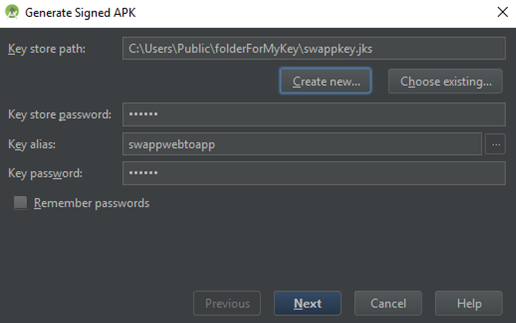
</p><p>Go to <b>Build &gt; Generate Signed APK…</b> and fill in your details, select location for your key and write your key password. 
</p><p><img src="https://support-hub--assets.s3.eu-west-2.amazonaws.com/assets/152/images/8O8DkuXNsy8ZEZ7YbPhCHhPLyrxTKFU5pqBVd7am.png" alt="8O8DkuXNsy8ZEZ7YbPhCHhPLyrxTKFU5pqBVd7am.png" style="width:100%;" /></p><p><br /></p><p><b>9.	</b>Publish on Google Play Store.
</p>]]>
            </summary>
                                    <updated>2018-12-10T23:06:20+00:00</updated>
        </entry>
    </feed>